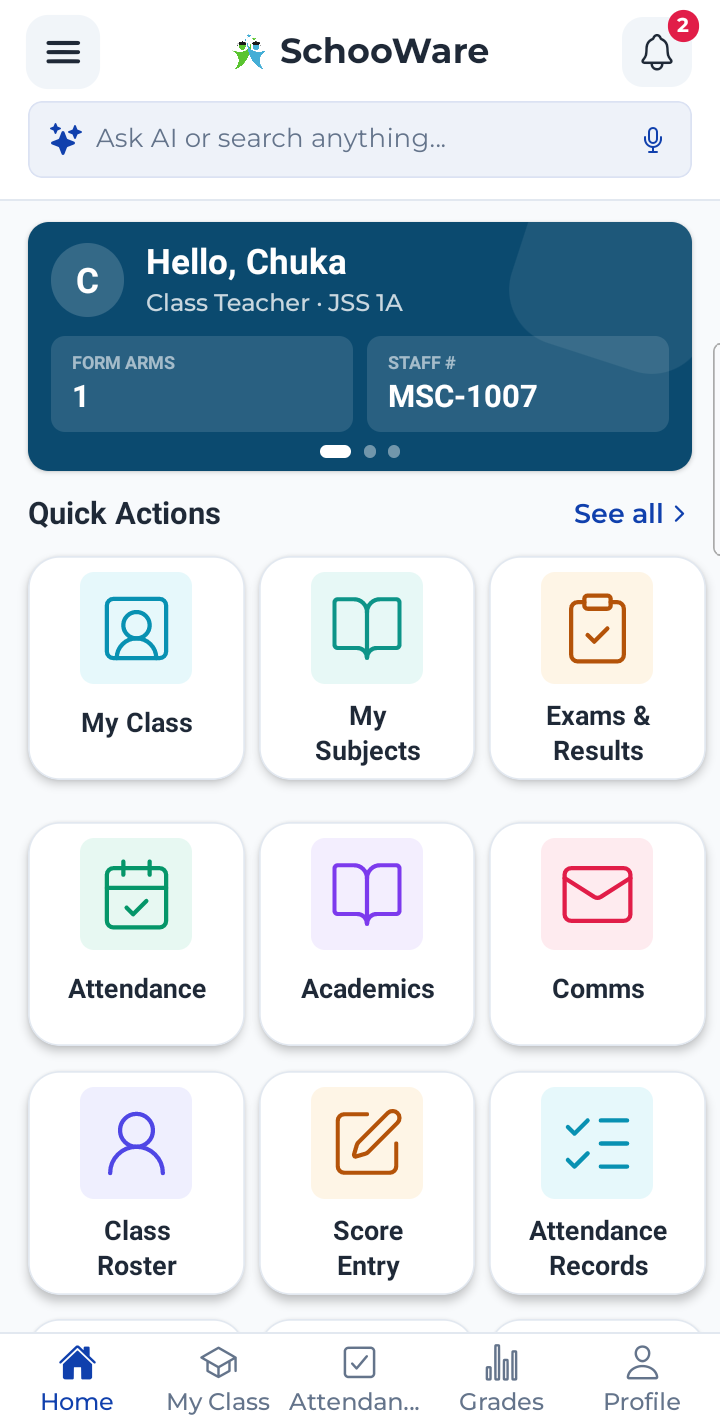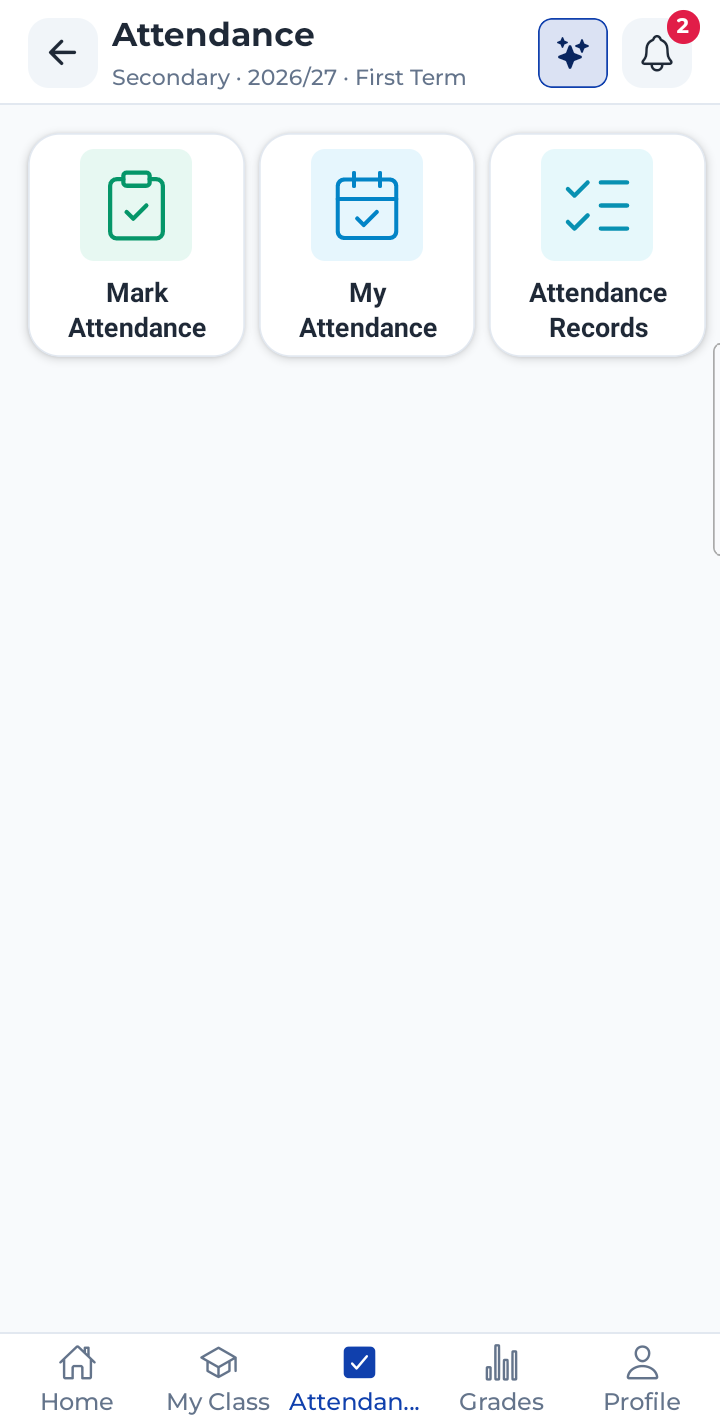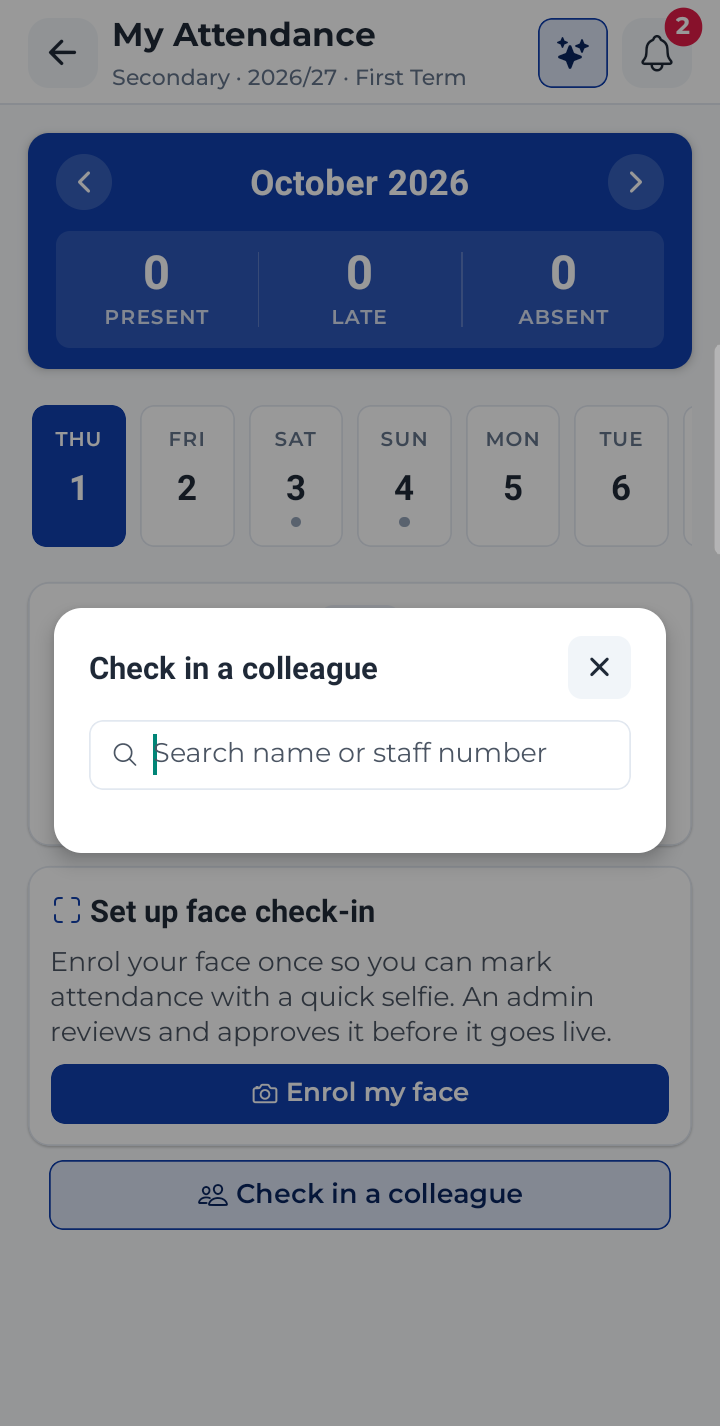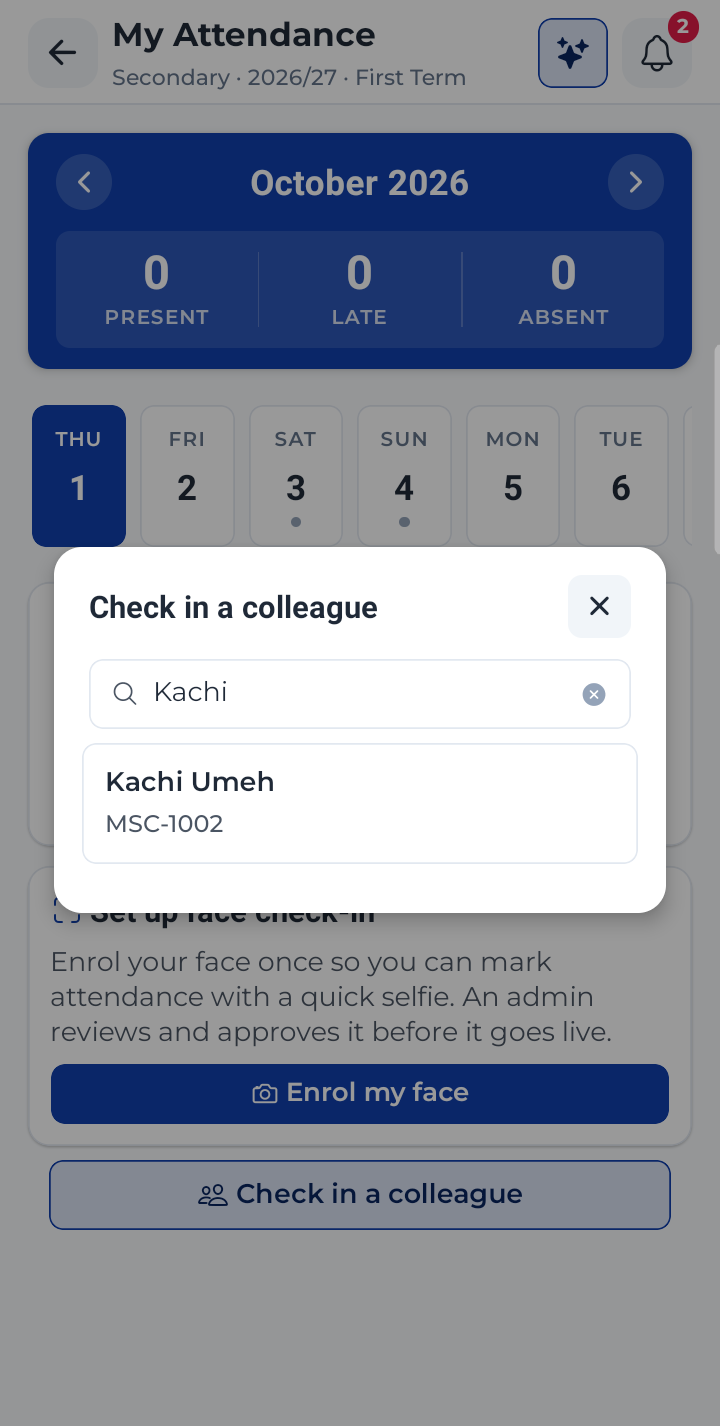
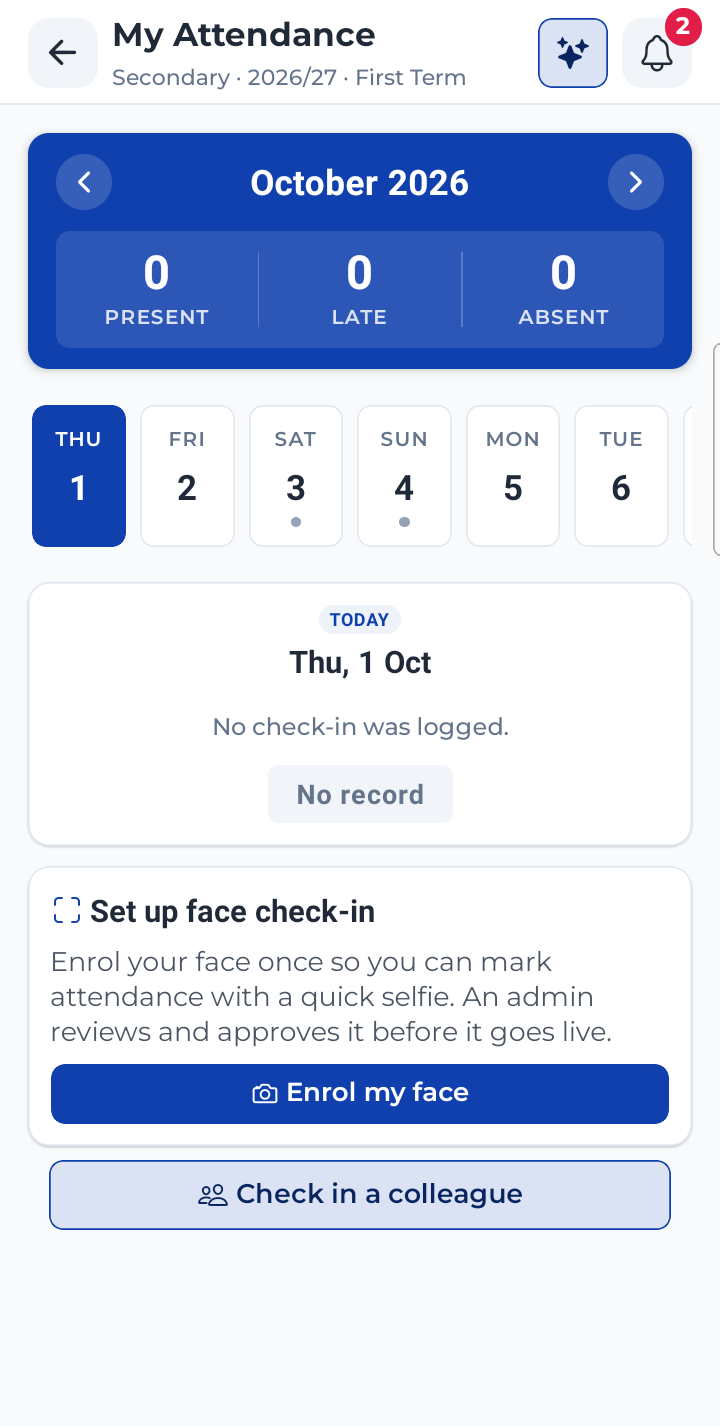
Open My Attendance
Tap the Attendance tab at the bottom, then My Attendance.
Enrol your face — just once
Tap Enrol my face, then Start capture. Keep your face in the frame — it takes 3 photos by itself.
Wait for your admin's approval
Your admin approves your photos. Then pull down to refresh — the Check In button appears.
You must be on campus
Check-in only works on the school grounds, and only once the check-in window has opened.
Check in with your face
Tap Check In. Turn your head the way the arrow points, and hold it until the phone buzzes.
Check out the same way
After school, tap Check Out and follow the same steps.
Check in a colleague
A colleague's phone is flat? Tap Check in a colleague, find their name, and they look into your camera.
What the phone says — and what to do
Read the message: it tells you exactly what went wrong.
07:41▂▄▆ ●
Face enrolment pending approvalAn admin will review your photos shortly. Face check-in becomes available once it is approved.
Face submitted for approvalAn admin will review it shortly.
Ready
We'll capture 3 photos automatically.
Keep Chuka's face in the frame.
Start capture
Review · 3/3
3 photos captured for Chuka Madu
Retake all
Confirm & enrol
Looking for face…
Turn LEFT · 1 of 3
Centre your face in the frame — we'll snap automatically.
» Same steps
Checking it's you…Sending your pictures and checking the turns and the face. This takes a few seconds.
Attendance marked
Checked in at 07:42
Have a great day at school.
Dismiss
Your admin approves your faceOn the web: Attendance → Face Enrollment → Pending → Approve.
Be on the school groundsYour phone's location must be inside the campus, with Location and precise location turned on.✓ On campus
Inside the check-in windowCheck-in opens a little before school starts — 07:30 here. Too early, and the phone says so.✓ It's 07:42
Later that day · 15:05School is over. The button now says Check Out.
"You are 240m from campus"
You must be on campus. Walk into the school grounds and tap Check In again.
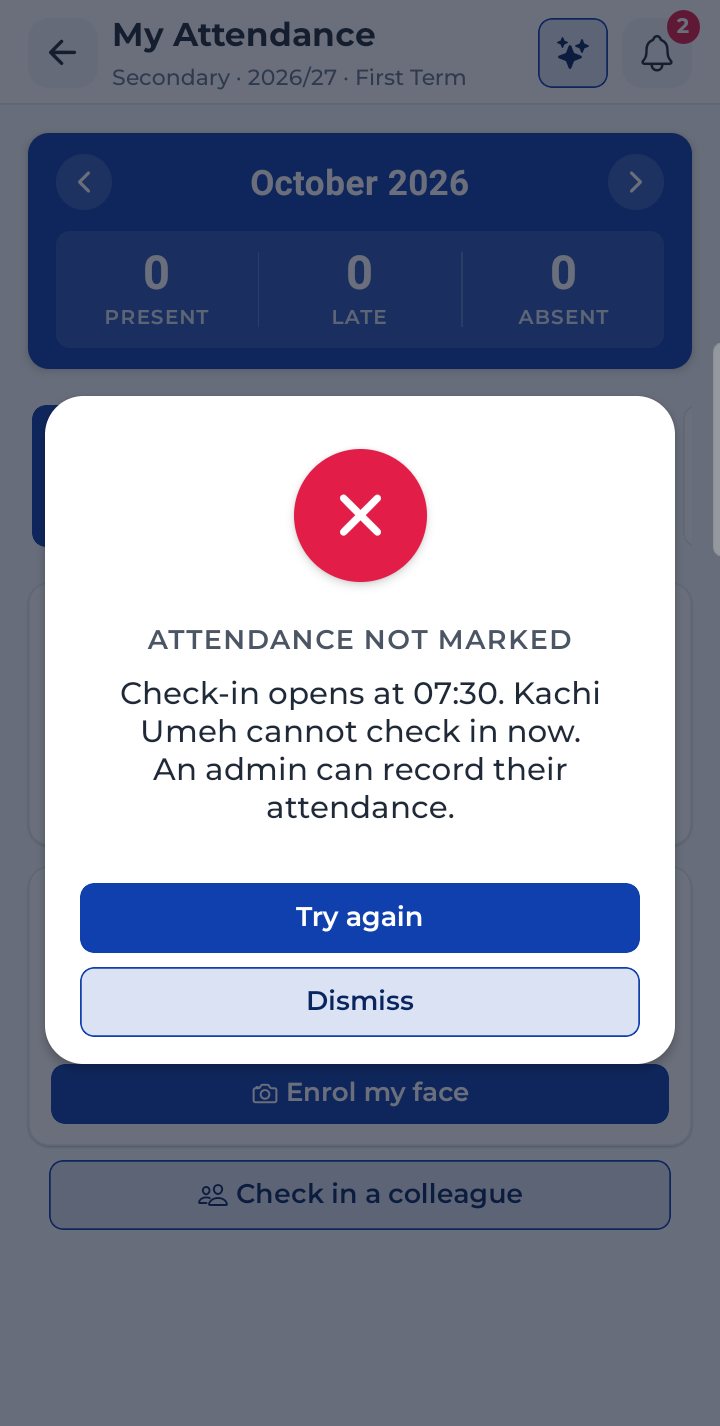
"Check-in opens at 07:30"
Wait for the window to open. Missed it? An admin can record your attendance.
"Face not recognised"
Face the light, take off tinted glasses, and keep your whole face inside the frame.
"We didn't see you turn left"
Turn your head the way the arrow points, and hold it until the phone buzzes.
"Precise location is off"
In your phone settings, turn on Location and "Use precise location" for SchooWare.
"Face enrolment pending approval"
Your admin has not approved your photos yet — ask them to check Face Enrollment.
Mark your attendance with your face
A short guide for educators on the SchooWare app — enrol once, then check in and out every day.
Enrol once. Check in every day.
Stuck? Ask your school admin — they approve faces and can record your attendance for you.
If it doesn't work — what to do